
Permit provider guide
Everything you need to sell permits on Eräkulkuri – from getting started to the rules.
The permit provider portal is currently in Finnish. In this guide, button names are given in English, with the Finnish name as it appears on screen in brackets.
How Eräkulkuri works
Eräkulkuri is a sales service for fishing and hunting permits – for fishing rights owners' associations, hunting clubs, landowners and businesses. You decide the areas, permits, prices and quotas – the service takes care of the sales, digital permit cards with QR codes, gear location markings and information for wardens. Fishing and hunting sites are shown to buyers on separate maps.
Quick guide – your first area on sale in about 10 minutes
-
Register and attach proof
Fill in the permit provider application (in Finnish). Tell us whether you are VAT-registered, and attach a document showing your right to sell permits for the area – for example an extract from the minutes of the association's or hunting club's meeting, a power of attorney or a lease agreement.
Applications are usually processed within a few working days. You will get an email when your account has been approved.
-
Join Paytrail as a sub-merchant
When you register, you receive instructions by email. Permit payments go through Paytrail directly to your bank account, so Paytrail identifies every permit provider itself (Business ID, bank account, responsible persons). You can do this while your application is being processed.
You can prepare your areas and permits before your Paytrail ID is ready. Paytrail will contact you about identification and signing the sub-merchant agreement. Once the agreement is signed, your permits automatically appear on the buyers' map within 24 hours – the top of the portal shows the status.
-
Add a new area
Log in to the permit provider portal and press + Add new area (“+ Lisää uusi alue”). Give the area a name (e.g. "Suojärvi waters" or "Metsäpirtti hunting grounds") and the municipality. An area can contain one or more sites.
-
Choose whether the site sells fishing or hunting permits
Each site is either a fishing site (lake, river or sea area) or a hunting site (forest, bog, field, lake, pond or sea area, or wetland). The form then asks for the right details: fish species and minimum sizes for a fishing site, game species and hunting seasons for a hunting site. The site is shown to buyers on either the fishing or the hunting map.
-
Look up the property by its ID and choose the parcels
Enter the property ID and press Search (“Hae”) – for example
123-456-876-1for a water area or123-456-7-8for a forest property. The property's parcels are shown in blue on the map. Tap the parcels that belong to the site – they turn orange.You don't need to know the ID: when you zoom in, property boundaries and IDs appear on the map. Tap a parcel (lake, river section, forest or field parcel) to see its property ID and area, and add it to the site. Before saving, the service shows a list of the selected properties and parcels for you to check – only add areas you have the right to sell permits for.
The ID of a joint water area usually contains the number 876. You can find the ID e.g. in the association's or club's documents, hunting lease agreements or the National Land Survey's map service (Karttapaikka). If the boundaries cannot be found by ID, you can also draw the boundary by hand.
Selling only part of a large parcel? A river, for example, may be part of a large joint water area. Choose the parcel, press Clip part of the parcel (“Rajaa osa palstasta”) and tap the map around the stretch you are selling. The clip does not need to be precise and may extend well onto the shores: the service cuts out only the part of the parcel inside the clip, and the boundary follows the shoreline. The part included in the site is shown in orange. If a stretch of the river is closed to fishing, press + Add clip (“+ Lisää rajaus”) and draw a second clip so that the closed stretch is left between the two – it is then not part of the site.
-
Fill in the site details and create the site
Give the site a name (if the area has only one site, you can leave it empty – the site gets the area's name). Then choose:
- Site type: stocked site, lake, river/rapids, sea or other for a fishing site; forest, bog or field area, lake, pond or sea area, or wetland for a hunting site.
- Species: fish or game species. Species missing from the list (e.g. burbot or moose)? Add it with the + Add species (“+ Lisää laji”) button.
- Description: 2–4 sentences about the site for buyers.
- Photos: the first photo is shown to buyers as the main photo.
- Rules: for a fishing site, minimum sizes, closed seasons and catch limits by species; for a hunting site, hunting seasons and bag limits by species (e.g. capercaillie 10.9.–15.10., max 1 / season). In addition, your own rules and rule attachments (PDF or image).
Press Create site from selection (“Luo kohde valinnasta”). You can create several sites in the same area – for example a lake and the river flowing into it, or a club's hunting grounds and the lake or wetland used for waterfowl hunting separately.
Sites with photos and rules sell clearly better. You can also add photos and rules later from the site's toolbar.
-
Save the area and add permits
Press Save area and add permits (“Tallenna alue ja lisää luvat”) and then + Add permit (“+ Lisää lupa”). The permit form only shows permit types that suit your sites: fishing permits for fishing sites and hunting permits for hunting sites. Choose:
- Type:
- Fishing: net permit (the buyer can mark the net's location on the map), fishing permit, crayfish permit and fish trap permit (the buyer can mark the gear location; for a trap permit you choose how many traps one permit covers) or trolling permit (registered to a boat: you choose how many rods one permit covers; the buyer chooses the number of rods and the required number of permits is calculated automatically).
- Hunting: hunting permit – a personal permit whose season follows the hunting seasons. When buying, the buyer confirms that they hold a valid hunting card.
- Name: e.g. "Suojärvi lure fishing permit", "Keski-Puula trolling permit" or "Club duck hunting permit".
- Sites where the permit is valid.
- Season: first and last day – a fishing permit can also be year-round. The permit is valid until 23:59 on the last day. A hunting permit's season is the hunting season of the species.
- Duration: season permit (the whole season) or calendar period (the buyer chooses the days).
- Prices: day, week, month and/or whole season. A price left empty is not on sale.
- Number and quotas: total number of permits (or unlimited), daily, weekly and monthly quotas and, if you wish, a maximum per buyer per year.
- Information for the buyer: e.g. permitted mesh sizes and boat launch, or use of dogs and meeting place.
For net permits you can create permits for different net sizes in one go: press + Add another net size with the same settings (“+ Lisää toinen verkkokoko samoilla asetuksilla”).
Except for season permits, each day counts as one permit. For example, 2 people × 7 days = 14 permits from the quota.
- Type:
-
Complete and check the site details
Under each site there is a row Site details for permit buyers (“Kohteen tiedot luvan ostajille”). Buttons marked with an orange dashed line are still to be done:
- Photos (“Kuvat”) – add or change photos.
- Rules (“Säännöt”) – minimum sizes and closed seasons for a fishing site, hunting seasons and bag limits for a hunting site, plus your own rules and attachments.
- Stocking (“Istutukset”) – date, fish species and amount at stocked fishing sites.
- No-fishing areas (“Kieltoalueet”) – parts of the site where fishing (or hunting) is prohibited, and the reason.
- QR poster (“QR-juliste”) – print a poster for the shore, the boat launch or the hunting area's notice board.
Press Show on map (“Näytä kartalla”) for the area. You can drag the site's symbol to the place you want – for example a boat launch or a hunting lodge, where the buyer's directions will lead.
-
Done – the permits are on sale
Once Paytrail has verified your account, your site is shown to buyers – fishing permits on the fishing map and hunting permits on the hunting map. Open a permit's Overview (“Tilannekatsaus”) to see sold permits, revenue, permits valid each day and net markings.
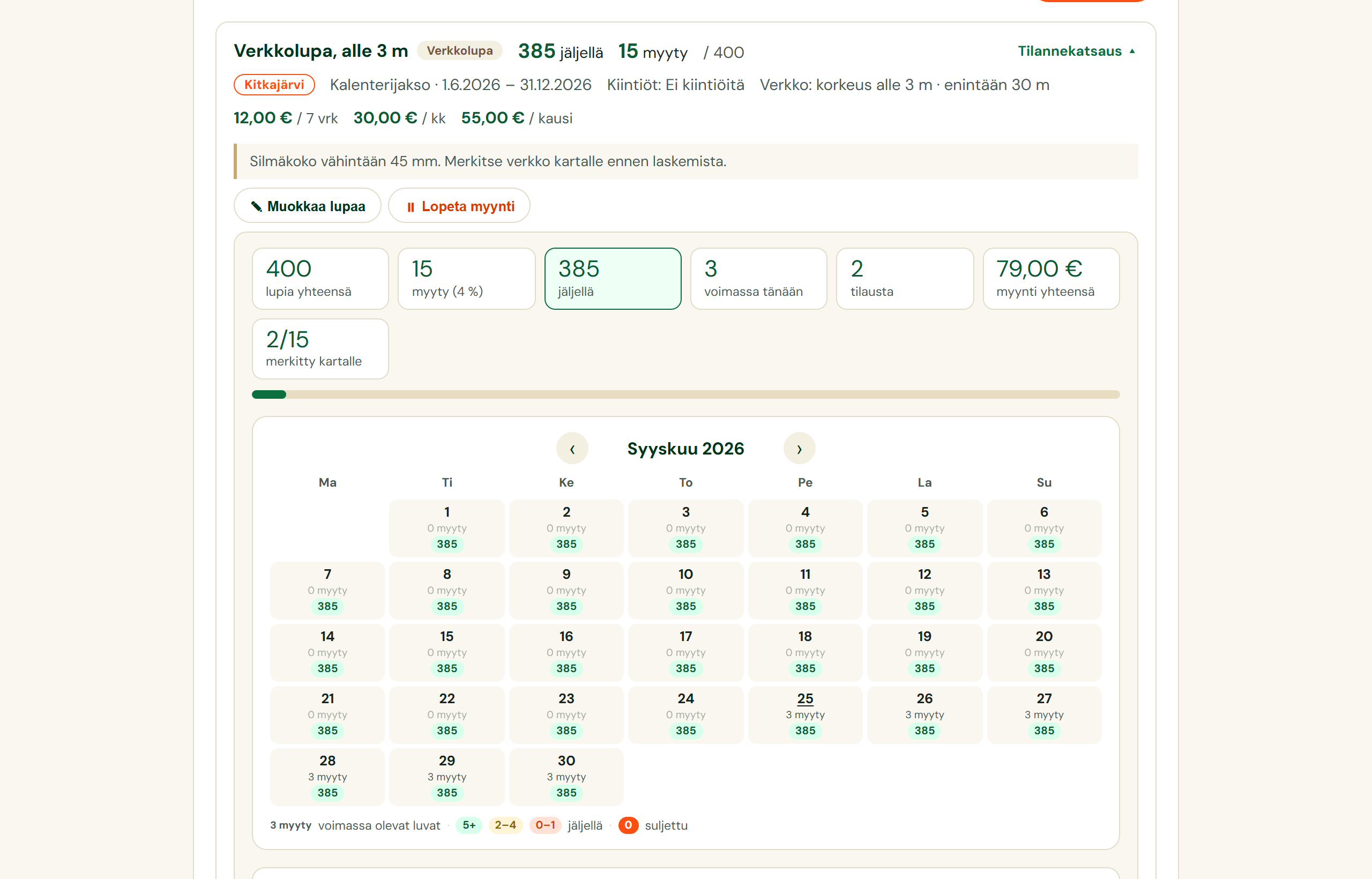
Overview: sales and quotas day by day.
Other features
You can pause sales of a permit and reopen them at any time. Permits already sold remain valid.
Create a new permit based on an existing one: the details are filled in and you only change what is needed. For an ended season, Copy to new season (“Kopioi uudelle kaudelle”) moves the season and the sales start one year ahead.
A permit whose season has ended can be archived, which moves it to the archived permits list. Sales and reports are kept, and the permit can be restored or copied later.
An area or site cannot be deleted if valid or upcoming permits have been sold for it. In that case stop the sales or edit the boundaries, rules and prices – changes apply to new purchases.
Name, sites, prices, numbers, quotas, sales start and additional information can be changed. Type, duration and season cannot be changed after the permit has been created – create a new permit if needed.
A site's boundaries can be edited afterwards: add or remove parcels or whole properties.
At stocked sites, the site's toolbar has an Stocking (“Istutukset”) button: record the date, one or more fish species, the amount and a note. Entries can be edited and deleted at any time.
A no-fishing area can be marked already when creating the site (Add no-fishing area (“Lisää kieltoalue”) above the map, draw, then Done (“Valmis”)) or later on the site: Add no-fishing area and + Draw no-fishing area (“+ Piirrä kieltoalue”). Tap the map around the area (at least 3 points). The boundary may extend onto the shore – only the part inside the site turns red, just like when clipping a parcel. Write the reason, e.g. spawning area or swimming beach, and save. The area is shown to buyers in red on the site map, and the reason appears in the site details, the order form and the permit card. Gear locations cannot be marked inside a no-fishing area. The reason can be edited and the area deleted at any time.
Limit or close sales on individual days, e.g. during competitions or stocking.
With the Rules (“Säännöt”) button on the site's toolbar you record minimum sizes, closed seasons and catch limits for a fishing site, hunting seasons and bag limits by species for a hunting site, and your own rules. They are shown to the buyer in the site details, the order form and the permit card – a protected species, or a species without an open season right now, is highlighted.
Print an A4 poster for the site; its QR code opens the site's permits directly on a phone. The poster also shows the site's description and rules. Put it up at the boat launch, on the jetty or on the hunting area's notice board.
Anglers can record their catch. The Catches (“Saaliit”) button at the top of the portal shows a summary by site and species (without names), and it can be downloaded as a CSV file, e.g. for the regional fisheries association.
With the Sales report (“Myyntiraportti”) button at the top of the portal you can have a monthly or quarterly report sent automatically to your email and your accountant – or download the report as a CSV file right away. In the same window you state your VAT status and Business ID. If you are not VAT-registered, the report also tracks the €20,000 threshold for small-scale business.
With the portal's search field you can find a permit by the buyer's or holder's name, permit name, area or date.
The site details have a Share (“Jaa”) button. A shared link shows the site's photo and name on Facebook and WhatsApp.
Rules for permit providers
The rules are part of the permit provider terms of agreement (in Finnish), which you accept when you register. The terms set out in more detail e.g. the commission, refunds, responsibilities and personal data. Breaking the rules may lead to content being removed, sales being suspended or the account being closed. If this translation and the Finnish terms differ, the Finnish terms apply.
- Sell only areas you own or manage. You may only add areas for which you, or the permit provider you represent, have the right to sell permits. Eräkulkuri may ask for proof of this right at any time.
- Advertising other sales channels is prohibited. Site names, descriptions, permit names or additional information must not advertise other permit sales points, online shops or services, or direct buyers to buy permits outside the service (e.g. links or phone numbers). A violation leads to the account being removed.
- Correct and up-to-date information. Area boundaries, prices, seasons, hunting seasons, quotas and additional information must be kept accurate. Prices are given in euros; if you are VAT-registered, the prices include VAT. Your VAT status must be kept up to date in the portal.
- Follow the law. Permit terms, seasons and catch limits must comply with the Fishing Act and the Hunting Act, their decrees and the authorities' regulations.
- Sold permits are honoured. Permits already sold cannot be cancelled unilaterally. If a change in the area prevents fishing or hunting, contact Eräkulkuri before the change.
- Buyers' data only for managing permits. You can see buyers' names and permit details. They may only be used for managing and supervising permits – not for marketing or passing on to others.
- Appropriate content. Descriptions and additional information must be written appropriately. Offensive or misleading content, or content that infringes copyright, will be removed.
- Credentials are personal. Keep your password safe and do not give your credentials to outsiders. Report immediately if you suspect misuse.
- Eräkulkuri's rights. Eräkulkuri may remove content that breaks the rules, suspend sales or close an account. The areas of a closed account are removed from the map; permits already sold remain valid for the buyers.
Eräkulkuri charges permit providers no monthly or set-up fees, only a commission on permits sold (10% of the permit price excluding VAT). In addition, the buyer pays a service fee of €1.50 per purchase (once per cart, even if it contains several permits). Payments are handled by Paytrail, which charges the permit provider its own fees (such as a monthly fee) according to its price list, and you receive a separate report of sales and commission for your accounting. The permit provider terms of agreement, Eräkulkuri's terms of use and privacy notice also apply (in Finnish).
Tips for better sales
For a fishing site, mention the fish species, the character of the water, boat launch, parking and special features (e.g. stocking). For a hunting site, mention the terrain, the game situation, meeting and parking place and the use of dogs. 2–4 sentences are enough.
Name permits so that the buyer knows immediately what they are buying: "Net permit, under 3 m", "Lure fishing, 1 day" or "Duck hunting permit, autumn season".
Record every stocking right away: date, species and amount. The latest stocking is shown to anglers in the site details, on permit cards and on the map – fresh stocking information is one of the most effective ways to attract anglers to your site.
An angler or hunter standing on the shore or by a forest road is your best customer. A poster at the boat launch or on the hunting area's notice board brings buyers to the service at exactly the right moment – and reduces fishing and hunting without a permit.
Day and week permits attract cottage owners and tourists, season permits the locals.
Daily and weekly quotas and species-specific catch limits keep fishing and hunting pressure reasonable. An annual limit per buyer prevents one buyer from hoarding permits, if you wish.
Record your area's hunting season and bag limit for each game species – e.g. the seasons for capercaillie and black grouse may differ from the national ones. The buyer sees immediately whether the species is in season right now.
Frequently asked questions
Does the service cost anything for permit providers?
Eräkulkuri charges permit providers no monthly or set-up fees, only a commission on permits sold (10% of the permit price excluding VAT). In addition, the buyer pays a service fee of €1.50 per purchase (once per cart, even if it contains several permits). Payments are handled by Paytrail, which charges the permit provider its own fees (such as a monthly fee) according to its price list, and you receive a separate report of sales and commission for your accounting. Questions? info@erakulkuri.fi.
Can I buy permits myself?
Yes. You can buy a permit directly while logged in as a permit provider, without logging out – the permit is then saved on your phone and sent to your email, as when buying without an account. For your own permits you can create a buyer account with the same email (and a different password): press Buyer account (“Ostajatili”) in the top bar. After that you switch between the portal and the buyer account with one click on the top bar button.
What are catch posts?
Permit buyers can publish a photo and a short text about their catch, shown to others in the site details. The posts make your site more attractive. You see the posts for your areas in the portal's Catches (“Saaliit”) window and can hide an inappropriate post or one not related to your area with the Hide (“Piilota”) button – and show it again later.
Who checks the permits?
Fishing and hunting wardens register in the service as inspectors and choose the permit providers in whose areas they work. An inspector can request more areas later with an attachment. Our administrators check the right to supervise before approval. An inspector only sees the permits of their own area, and every search of personal data is logged. A permit's validity can also be checked by scanning the QR code on the permit card. Wardens register on the inspector registration page (in Finnish).
Where do I find the property ID?
In the documents of the association or club (e.g. list of shareholders, hunting lease agreement or property register extract) or in the National Land Survey's map service (Karttapaikka). The ID of a joint water area usually contains the number 876, e.g. 123-456-876-1.
Can I add several sites to the same area?
Yes. Create a separate site for each lake, river or hunting area. The same area can contain both fishing and hunting sites. One permit can be valid at one or more sites of the same kind.
Can the same site sell both fishing and hunting permits?
No. A site is either a fishing or a hunting site, so that it is shown to buyers on the right map with the right information. If the same area has both water and forest, make them separate sites – the boundaries can be the same or overlapping.
Does a buyer of a hunting permit need a hunting card?
Yes. When buying, the buyer confirms that they hold a valid hunting card (game management fee paid) and meet the requirements for hunting. The confirmation is saved with the order.
What happens when the season ends?
The permit is valid until the end of the last day of the season (23:59). After that the permit can no longer be bought, and the gear marked by buyers is removed from the map automatically.
Why is my area not visible to buyers?
Areas appear on the buyers' map once your account has been approved and Paytrail has verified your sub-merchant account (identification and bank account). The status card at the top of the portal shows how far the onboarding is. Also check that the site has a permit on sale.
Does the buyer have to mark the net on the map?
No. Marking the net's location is optional: when ordering, the buyer chooses whether to mark their net. Marking makes the wardens' work easier, and the net label is pre-filled with the buyer's name and phone number, as on a net flag.
Can other anglers see where the nets are?
No. Marked locations are only visible to the net's owner, permit inspectors and Eräkulkuri's administrators.
Can I stop sales in the middle of the season?
Yes. Press Stop sales (“Lopeta myynti”) for the permit. Permits already sold remain valid. You can reopen sales with the same button.
Ready to start?
Registering takes a few minutes. We are happy to help you get started.